

Borders, margins and padding
The box model is how CSS sizes and spaces elements. Content, padding, borders, and margins is the focus here – the four layers that make up every box on a page.
What is the CSS box model?
Every element on a web page is a box, whether it looks like one or not. The box model describes how those boxes are built: content in the middle, then padding, border, and margin around the outside.
The layers of the box model
Here’s a visual representation:
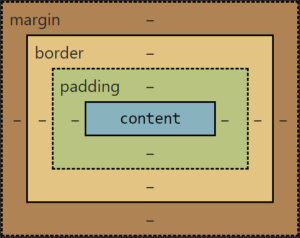
Each layer explained
- Content: the actual stuff inside the element – text, images, buttons. Everything else wraps around this.
- Padding: space between the content and the border. Useful on buttons and menu items where you want breathing room between text and the edge of a coloured background.
- Border: a line around the padding. Good for highlighting menus or buttons, but easy to overuse and end up with a page full of boxes.
- Margin: space outside the border, between this element and its neighbours. A standalone call-to-action button might have generous margins; a dropdown item might have almost none. Negative margins can pull elements closer together when you need tighter grouping.
A practical example
HTML:
<div class="box">Hello, world!</div>CSS:
.box {
    width: 300px;
    padding: 20px;
    border: 5px solid black;
    margin: 30px;
    background-color: lightblue;
}
That gives us:
- A content area 300px wide.
- 20px of padding inside the border.
- A 5px solid black border.
- 30px of margin separating it from other elements.
- A light blue background that fills the padding area too.
The box model and layout
By default, an element’s total width is width + padding + border. Margin sits outside that. This catches people out with percentage widths and responsive layouts.
Border-box sizing
CSS3 added box-sizing. With box-sizing: border-box;, the declared width and height include content, padding, and border – margin still sits outside. Most projects set this globally because it makes sizing much more predictable.
Margin collapsing
Adjacent vertical margins collapse – the browser uses the larger value, not the sum. Horizontal margins do not collapse.
Margins are transparent. They do not show the element’s background colour.
Padding and backgrounds
Padding does show the element’s background colour or image. That is why a button’s coloured background extends into its padding area.
Practical tips
- Consistency: pick
border-boxglobally or stick with the defaultcontent-box– do not mix without reason. - Developer tools: browser dev tools show the box model visually when you inspect an element. Use them.
- Responsive design: padding and margin affect how layouts scale on smaller screens. Test at different widths.
Everything in CSS layout builds on the box model. Once margins, borders, padding, and content click, the rest of layout makes much more sense.